
If a product isn't in Scannable's equipment database, request it. We check the details and add the SKU, so you and everyone else can add it to their inventory.
When to request a SKU
Request a SKU when the product is made by a manufacturer and sold to others, but you can't find it in search. Try the tips in Help! I can't find the equipment I'm looking for first.
If the item is unique to you, such as a custom-made assembly, create it yourself instead.
Admins, Managers and Members can request SKUs.
What to include
The quickest request is a link to the product page on the manufacturer's website. A link is enough on its own. Use the manufacturer's site, not a retailer's, if you can.
Without a link, add all three of these:
- Product name
- Part number
- Manufacturer. In the web app, pick it from the list, or type its name and select ‘Use’ if it isn't listed. In the mobile app, type its name.
Requesting a SKU in the Scannable web app
- Select ‘Product search’ in the left-hand menu
- Select ‘Request a SKU’ above the search box. If your search finds nothing, you can also select ‘Can't find your SKU? Request it’ under the results

- Fill in the details
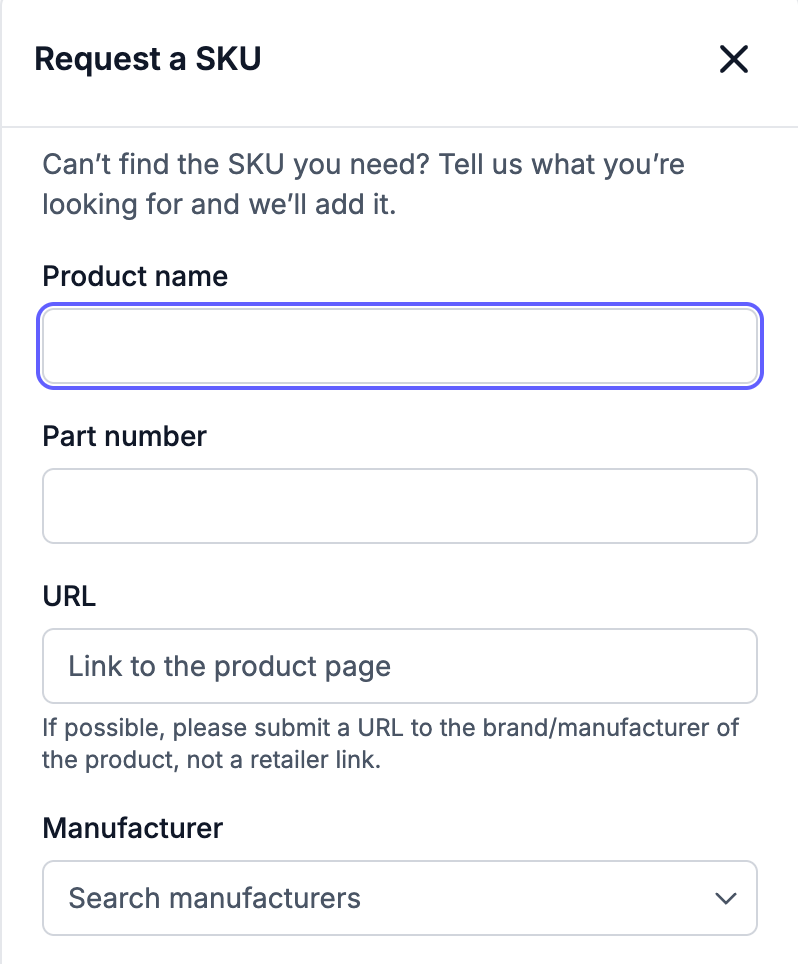
- Select ‘Submit request’
The same link shows when you search for a SKU while adding an item and get no results. You can also open the request form directly.
Requesting a SKU in the Scannable mobile app
- Tap the ‘Me’ tab to open My account
- Tap ‘Request a SKU’
- Fill in the details
- Tap ‘Submit request’
What happens next
The Scannable team reviews every request. If the product is real and we have enough to go on, we add it to the equipment database. If it is already there under another name, we link your request to it. Once added, search for it and add it to your inventory as usual.
We may turn down a request that is a duplicate, isn't a real product, or doesn't give us enough to find it.