
One Scannable account works on the web at app.scannable.io and in the mobile app. Sign up once, then sign in anywhere with the same details.
Create your account
You can sign up on the web at app.scannable.io/sign-up, or tap Sign up in the mobile app.
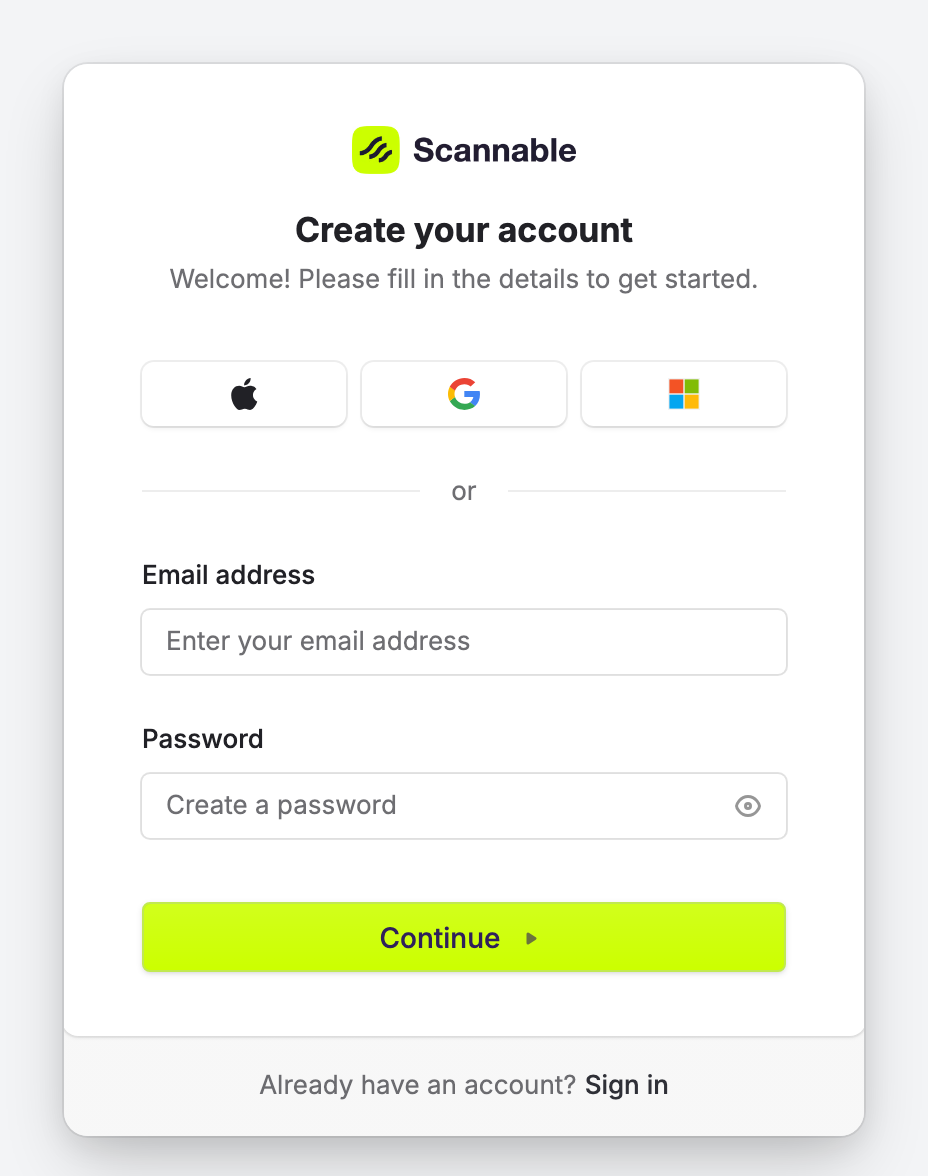
Choose one way to sign up:
- Google, Microsoft or Apple. Select the icon for the account you already use. That provider confirms who you are, so you don't need a Scannable password.
- Email and password. Enter your email address and choose a password, then select Continue. Scannable emails you a code. Enter it to finish. In the app, tap Verify code.
Set up your profile and organisation
After you sign up, Scannable takes you through up to three steps.
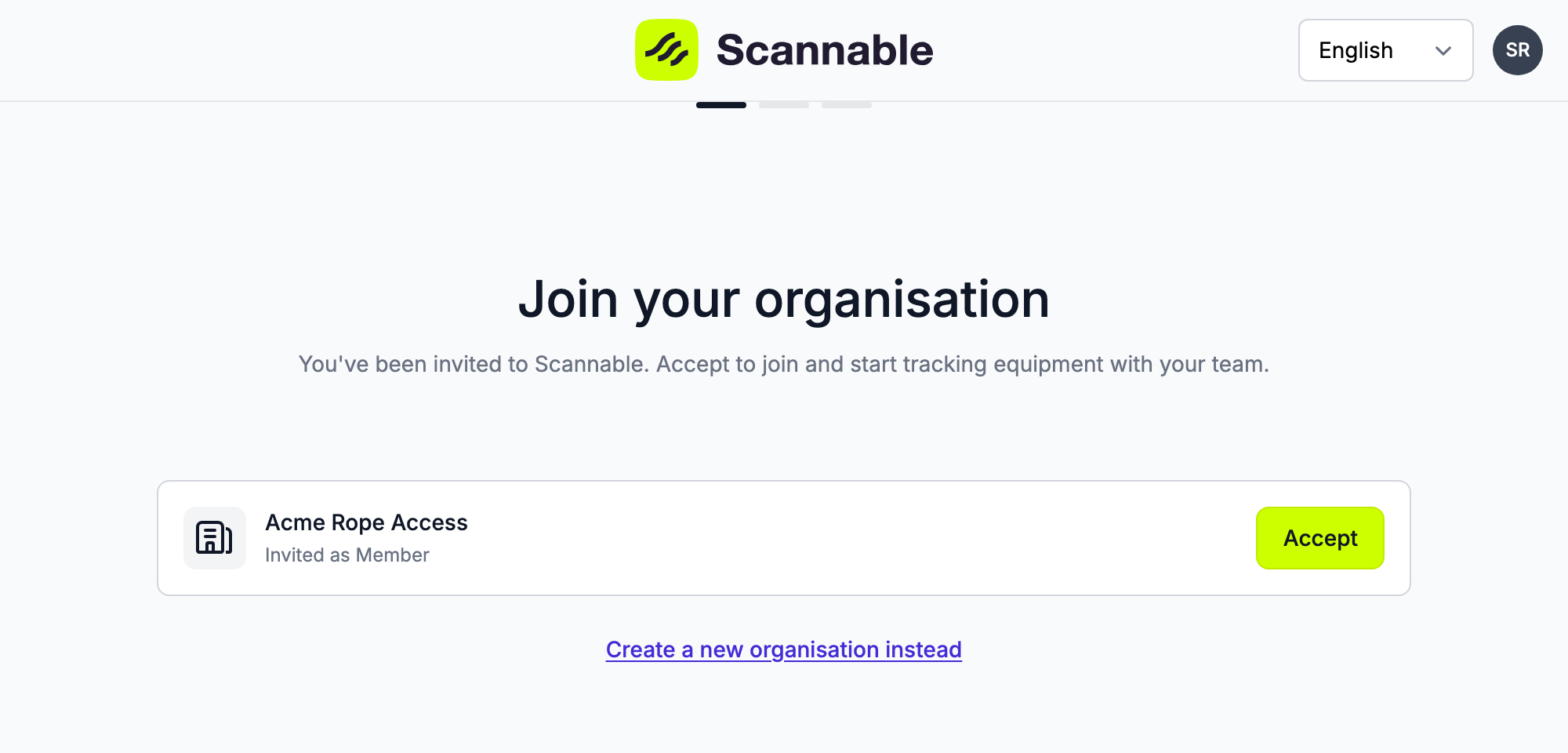
- Join your organisation. This step only shows if someone has invited you. Each invitation shows the organisation's name and the role you were invited as. Select Accept to join.
- About you (Complete your profile in the app). Enter your name, phone number and role.
- Your organisation. This step only shows if you didn't accept an invitation. Enter your organisation's name, industry and number of PPE users.
On the last step, select Complete setup (Complete in the app).
If you accept an invitation, you skip step 3 and go straight into your colleague's organisation.
On the web, Scannable then asks for your notification preferences and shows how to install the mobile app. If you created a new organisation, it first helps you set your compliance standards, which you can skip.
Join an organisation after you sign up
An invitation is sent to one email address. You only see it when you're signed in with that address.
- You have no organisation yet. Scannable shows You are not in an organisation with your invitations. Select Accept on the one you want.
- You already belong to an organisation. New invitations show in the main navigation on the web, and on the Home screen in the app. Accept one to join that organisation as well.
If you expected an invitation and can't see it:
- Check you're signed in with the email address your admin invited.
- Ask your admin to check the Invites tab. They can delete the invitation and send it again to the right address.
Sign in
Sign in at app.scannable.io, or tap Sign in in the mobile app.
With Google, Microsoft or Apple
Select the icon for the account you use. You can use these even if you first signed up with an email and password. The email address on your Google, Microsoft or Apple account must match the one on your Scannable account. Otherwise Scannable creates a separate, empty account.
For example, if you signed up as bob@gmail.com, use Google and sign in as bob@gmail.com. Your Scannable account is then linked to Google.
With your work account (single sign-on)
If your company has set up single sign-on (SSO) with Scannable, enter your work email address and select Continue. Scannable sends you to your company's sign-in page. Sign in there, and you return to Scannable signed in.
You don't need a separate Scannable password. If your company's sign-in page doesn't open, ask your IT team to check that your account has access to Scannable.
With email and password
Enter your email address, select Continue, then enter your password.
Reset your password
- On the sign-in page, enter your email address and select Continue.
- Select Forgot password.
- Scannable emails you a code. Enter it, then choose a new password.
If you sign in with Google, Microsoft, Apple or your work account, you have no Scannable password to reset. Reset the password with that provider or your IT team instead.
To change a password you know on the web, go to My settings and select Manage sign-in. In the app, go to Me and tap Change password. If you sign in with your work account, change your password with your company instead.
If you never got the verification code
When you sign up with email and password, your account isn't created until you enter the code.
- Check your spam or junk folder for an email from Scannable.
- If the code has expired or never arrived, start again from Sign up with the same email address. Scannable sends a new code.
Your data stays with Scannable
Signing in with Google, Microsoft, Apple or your work account only lets that provider confirm who you are. Scannable doesn't share your equipment data with them.