
Video overview of Production App changes
The Scannable Production App runs on your production-line computer and works with a barcode scanner and NFC reader to link 2D codes (e.g. data matrix or QR) and NFC tags to unique serial numbers in the Scannable cloud. Each item you process becomes a Smart Product — when an equipment owner taps it with their phone, they can add it straight to their Scannable account with all the information already attached.
This guide covers setup (for first time tower users / purchasers), your first capture run, and the features you'll use day to day.
New Scannable users
What's in the box
- Barcode scanner
- NFC reader
- Modular frame setup and stand
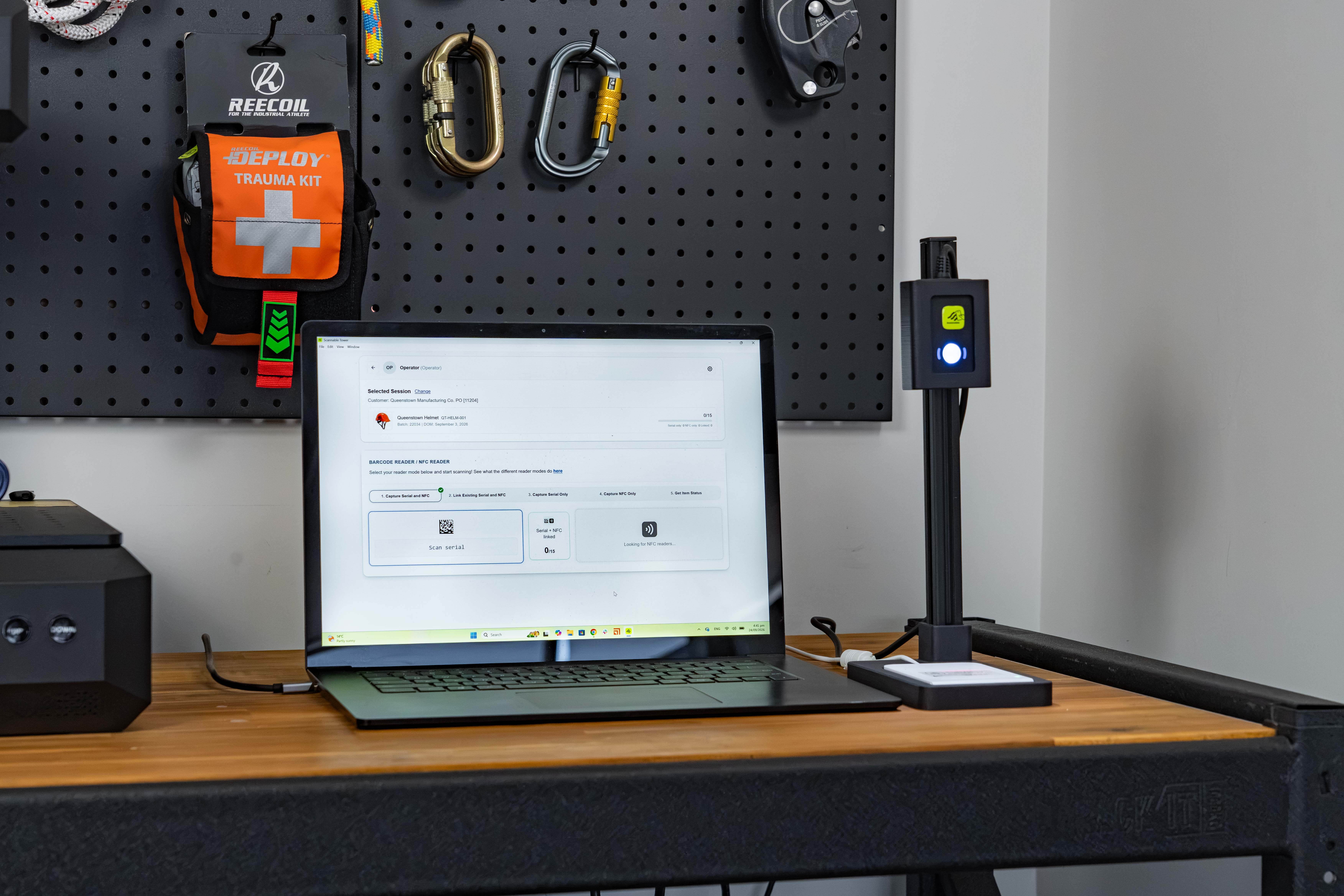
1. Connect the hardware
Plug the barcode scanner and NFC reader into your computer via USB. The Production App detects them automatically. The NFC reader reconfigures itself each time it connects, so there's nothing to set up on the reader.
2. Install the Scannable Production App
Available on:
Existing Scannable Tower users
3. Sign in
There are two ways to connect the app to your Scannable account:
Sign in with your Scannable account
- Open the app and choose to sign in with your Scannable account
- Sign in in the browser window that opens
- When you're done, the browser page sends you back to the app
Or use an API key
- Log into the Scannable web app
- Go to Settings → API Keys
- Create a new API key and copy it
- In the Production App, open Settings and paste the key
If the app has no credentials yet, it opens on Settings so you can sign in.
4. Create a purchase order and a capture session
Capture runs now start from a purchase order in the Scannable web app. Previously this lived under Serialisation → Capture Serials.
- Go to the Production tab
- Click Create purchase order
- Add the product(s) and quantities on the order
- Under Serial numbers, choose Capture serials — this tells Scannable the serials and NFC will be captured on the production line rather than generated up front
- Fill in the order details — Purchase Order #, Sales Order #, Customer Reference, Batch #, Date of Manufacture
- Save
Saving creates a capture session for the purchase order. It's now Active and appears in the Production App as a job, ready to scan into. One purchase order can hold several SKUs — each gets its own capture progress.
5. Choose a job
Open the Production App. The job picker groups sessions by purchase order and shows the brand, product images and capture progress for each. Newest jobs are at the top.
- Use the organisation sidebar to show one organisation's jobs
- Use search to find a specific job
- Select a run to open it
On an order with several SKUs, pick the SKU you're capturing — scans go to that SKU.
6. Choose your reader mode
Pick the mode that matches what you're doing:
- Capture Serial and NFC (default) — scan a serial barcode, then tap an NFC tag to create a new linked pair. The serial must not already exist in Scannable.
- Link Existing Serial and NFC — pair an existing serial with a different NFC tag, or re-pair a tag already linked to another item. Use this for damaged tags or mis-scans.
- Capture Serial Only — scan the 2D code only, for products with no NFC tag
- Capture NFC Only — tap the NFC tag only, for products with no 2D code
- Get Item Status — look up an existing item to see what it's linked to
7. Capture items
Scan and/or tap each item. Submissions happen automatically, and the progress counter updates in real time.
A few things the app handles for you:
- If you tap a tag that's already paired to another item, you'll be asked to confirm before it's reassigned.
- If you scan a serial and don't tap a tag within 30 seconds, the serial is discarded so it can't get linked to the wrong tag. Just scan it again.
- Stray data from the reader is ignored rather than saved as a serial.
When the last ordered unit is captured, the run closes automatically. Need to capture more? Click Reopen and keep scanning.
8. Review captured serials
Open the purchase order in the Production tab of the web app to see every linked serial. Click any serial to see its unique URL — this is what an end user sees when they tap the product with their phone.
Additional changes
Closing and reopening runs
You can close a run straight from the job list. To bring one back, show closed runs (from the last 7 to 180 days) and reopen it — no need to use the web app.
Languages
Every screen in the Production App is available in:
- English
- Chinese (Simplified)
- Chinese (Traditional)
- Vietnamese
Running multiple runs
You can have several purchase orders capturing at once — every active session appears in the job picker.