
Keep your catalogue accurate as your range changes. You can correct a SKU's part number, archive SKUs you no longer sell and see every item made on a SKU.
Your SKUs are under ‘Products/SKUs’ in the left-hand menu, on the ‘All SKUs’ tab. Select a SKU's part number to open its side panel.
Admins can change part numbers, archive, unarchive and delete SKUs.
Changing a part number
- Open the SKU's side panel
- On the ‘SKU’ tab, edit the ‘Part number’ field
- Select ‘Update’
- Check the confirmation, then select ‘Change part number’
The new part number replaces the old one everywhere: on the product page, in your catalogue tables and in search. Searching by the old part number stops finding the SKU.
- Items already registered under the SKU stay attached and keep working.
- Labels already printed or etched keep the old part number. Physical marking does not update.
Changing only the capitals, for example abc-100 to ABC-100, saves without asking you to confirm.
Archiving a SKU
Archive a SKU you no longer sell. An archived SKU leaves your catalogue, but equipment owners can still find it in search, and items linked to it keep their product data.
To archive one SKU:
- Open the menu at the end of the SKU's row
- Select ‘Archive’
- Confirm
To archive several at once, tick the SKUs in the table, choose ‘Set archive status’, then pick ‘Archived’.
You can also set ‘Visibility’ to ‘Archived’ in the SKU's side panel and select ‘Update’.
Seeing and unarchiving archived SKUs
The SKU table shows active SKUs only. To see archived ones, change the ‘Visibility’ filter to ‘Archived’, or to ‘Active and archived’ for both. Archived SKUs carry an ‘Archived’ badge.
To bring a SKU back into your catalogue, open the menu at the end of its row and select ‘Unarchive’. For several, use ‘Set archive status’ and pick ‘Active’.
Seeing the items on a SKU
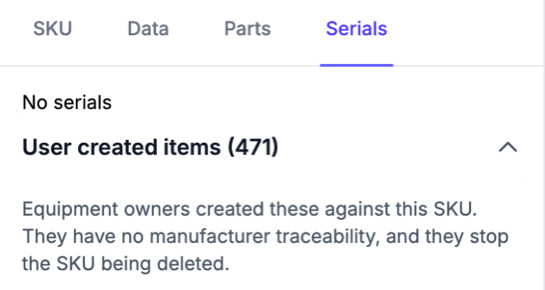
The SKU side panel's ‘Serials’ tab lists the items on that SKU, in two sections:
- Serials, headed with a count such as ‘120 serials’: the items you serialised, for example through a purchase order. It reads ‘No serials’ if you haven't serialised any.
- User created items, with its count in brackets: items that equipment owners created on your SKU themselves. They have no manufacturer traceability, such as a production run or batch.
The ‘User created items’ section shows only when there are some. Select its heading at the bottom of the panel to open it.
Why a SKU can't be deleted
You can delete a SKU only when nothing is linked to it. A SKU is in use while it has:
- Items, in any organisation. This includes user created items
- Components, if the SKU is an assembly
- Assemblies it is part of
When you select ‘Delete’ on a SKU in use, Scannable lists what is linked to it. Select ‘Archive instead’ to take it out of your catalogue. Everything linked to it keeps working.
The ‘Serials’ tab shows which items are linked, including user created items you might not expect.
Verified SKUs
Verified tells equipment owners that you stand behind a SKU's data. Admins turn it on in the SKU side panel, or for several SKUs at once from the table. See Manufacturer verified SKUs.