
Your plan covers a set number of items, called your inventory limit. The free plan covers 200 items. A paid plan covers the number of items you chose when you upgraded.
You can go a little past your limit, so a job in progress is never stopped at the exact number. Once you use up that extra room, Scannable stops new items being added until you make room or upgrade.
What counts towards your limit
- Every item in your inventory counts as one.
- An assembly counts as one item, however many parts it has.
- Archived items do not count.
- Moving an item between folders does not change your count.
What happens as you get close
As you pass each of these points, your organisation's admins get an email. The warning shows when you add an item, in the web app and the mobile app. The mobile app also shows it on the Home screen. On the free plan, the web app's left-hand sidebar also shows how much of your limit you have used.
| Point | What you see |
|---|---|
| 95% of your limit | The warning counts down the items left. |
| Past your limit | The warning shows how many more items you can add before adding stops. |
| No more room | New items are refused. The warning asks you to upgrade or remove items. |
If you add a batch that does not fit, Scannable tells you how many items would still fit. In the mobile app, the item you were adding stays on screen, so you can try again once you have made room.
Emails go out once a day. If you pass several points at once, the admins get one email, for the highest point. Each email is sent once. If your inventory drops back below a point and crosses it again, the admins get that email again.
These limits stop new items being added. Restoring archived items also counts as adding. So does moving items into another organisation: it counts against that organisation's limit. You can still view and inspect the items you already have, and move them between folders.
Making room
Archive items you no longer use. Archived items keep their history and stop counting towards your limit. You can also remove items from your inventory.
The warning updates as soon as you archive or remove items.
Upgrading
Upgrade in the web app. The mobile app cannot take payment, so it points you to the web app.
Only an admin of your organisation can upgrade. If you are not an admin, ask one.
- On the free plan, select Upgrade Today in the left-hand sidebar, under your inventory usage.
- On a paid plan, select View plan at the top of the left-hand sidebar.
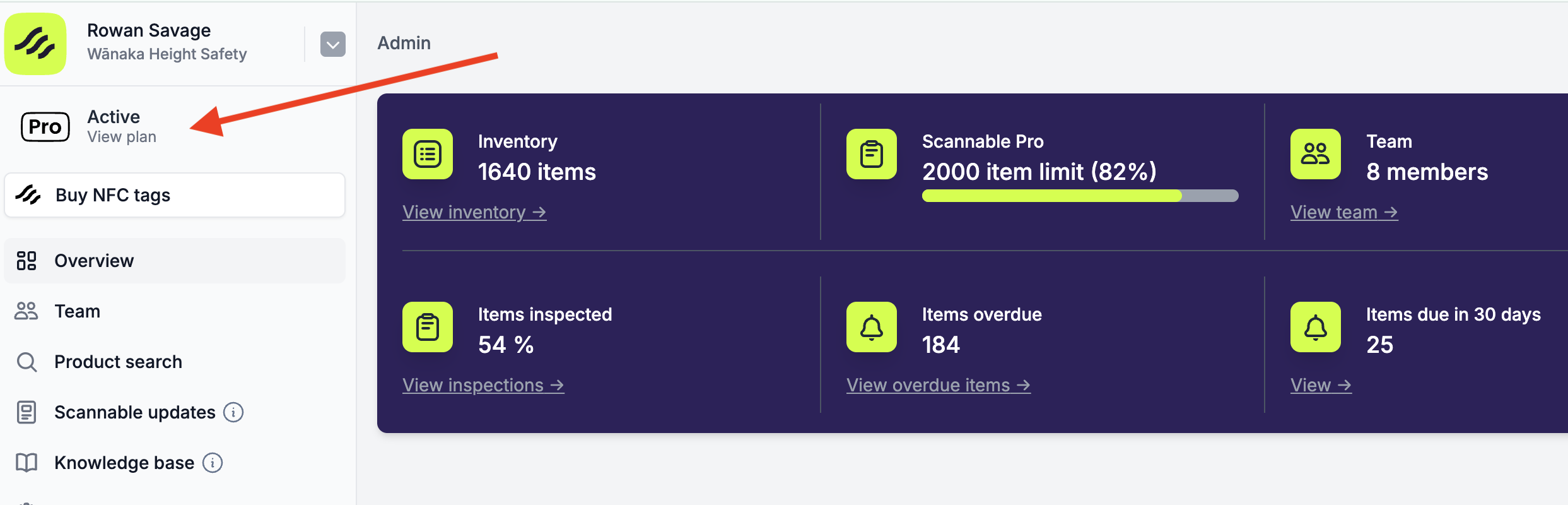
For prices, billing and cancelling, see Managing or upgrading your subscription.
If your limit looks wrong
Each organisation has its own plan and limit. If you belong to more than one, check which one you are in. Its name shows at the top of the left-hand sidebar.
If you signed up yourself, you may have created a separate free organisation by mistake. Ask an admin of your team's organisation to invite you.