
Applying an inspection frequency to a single item using the web app
- You can set an inspection frequency on a singular item from the Inventory screen
- Click on the three dots on the right-hand side of the item you wish to set a frequency for, and select ‘Set inspection frequency’
- Use the dropdown menu to select the relevant frequency and enter the start date for the frequency
- Click ‘Save’
Applying an inspection frequency to multiple items using the web app
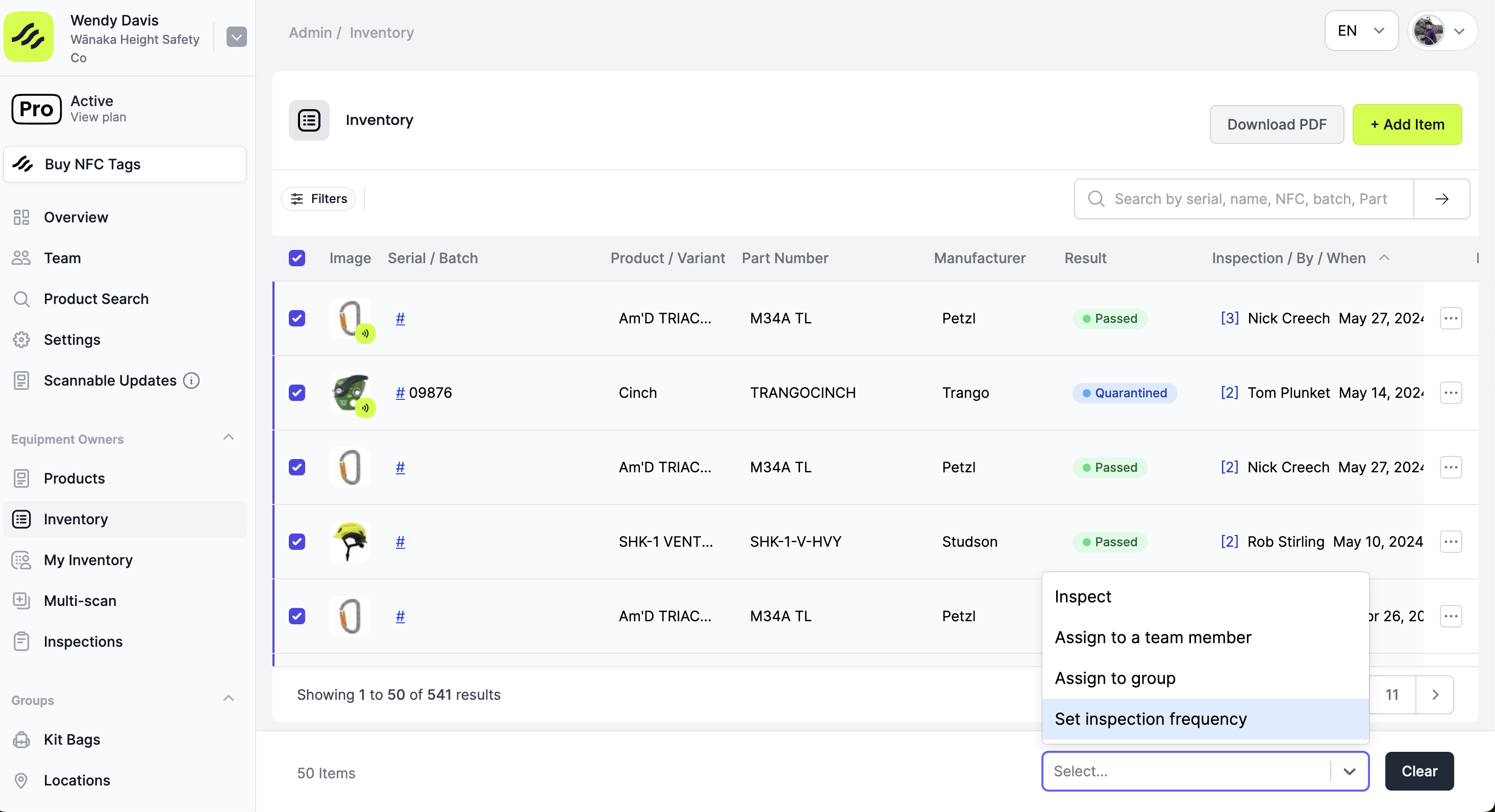
- From the Inventory screen, use the check boxes on the left-hand side to select the items that you wish to apply a frequency to
- You can use the select all checkbox to select all items on a page. If your inventory has more than one page, you will need to check the select all checkbox on all inventory pages
- Click the ‘Select a bulk action to perform’ dropdown menu on the bottom of the screen
- Click ‘Set inspection frequency’
- Use the ‘Frequency’ dropdown menu to select the relevant frequency
- Use the dropdown menu to select the relevant frequency and enter the start date for the frequency
- Click ‘Save’
Applying an inspection frequency to a single item of equipment using the mobile app
- Tap ‘Inventory’ on the bottom menu of the mobile app
- In the Items tab, use the search bar to search your inventory for the item you want to add to a frequency to
- Tap on the item to view its information
- Tap 'Options'
- Tap ‘Set inspection frequency’
- Tap on the frequency you wish to apply
- Add the start date for the frequency by tapping in the ‘Start date’ field, selecting the date, and tapping ‘Confirm’
- Tap ‘Save’
Applying an inspection frequency to multiple items using the mobile app
- Tap ‘Inventory’ on the bottom menu of the mobile app
- If the items you want to apply an inspection frequency to are in a folder, navigate to the folder.
- Tap ‘Multi Select’
- Select the items you wish to apply the inspection frequency to using the check boxes to the left of the item’s name
- You can use the select all checkbox to select all items on a page. If your list has greater than 20 items, you will need to scroll to the bottom of the list to load all of your items.
- Tap 'Options'
- Tap ‘Set inspection frequency’
- Tap on the frequency you wish to apply
- Add the start date for the frequency by tapping in the ‘Start date’ field, selecting the date, and tapping ‘Confirm’
- Tap ‘Save’