
Overview
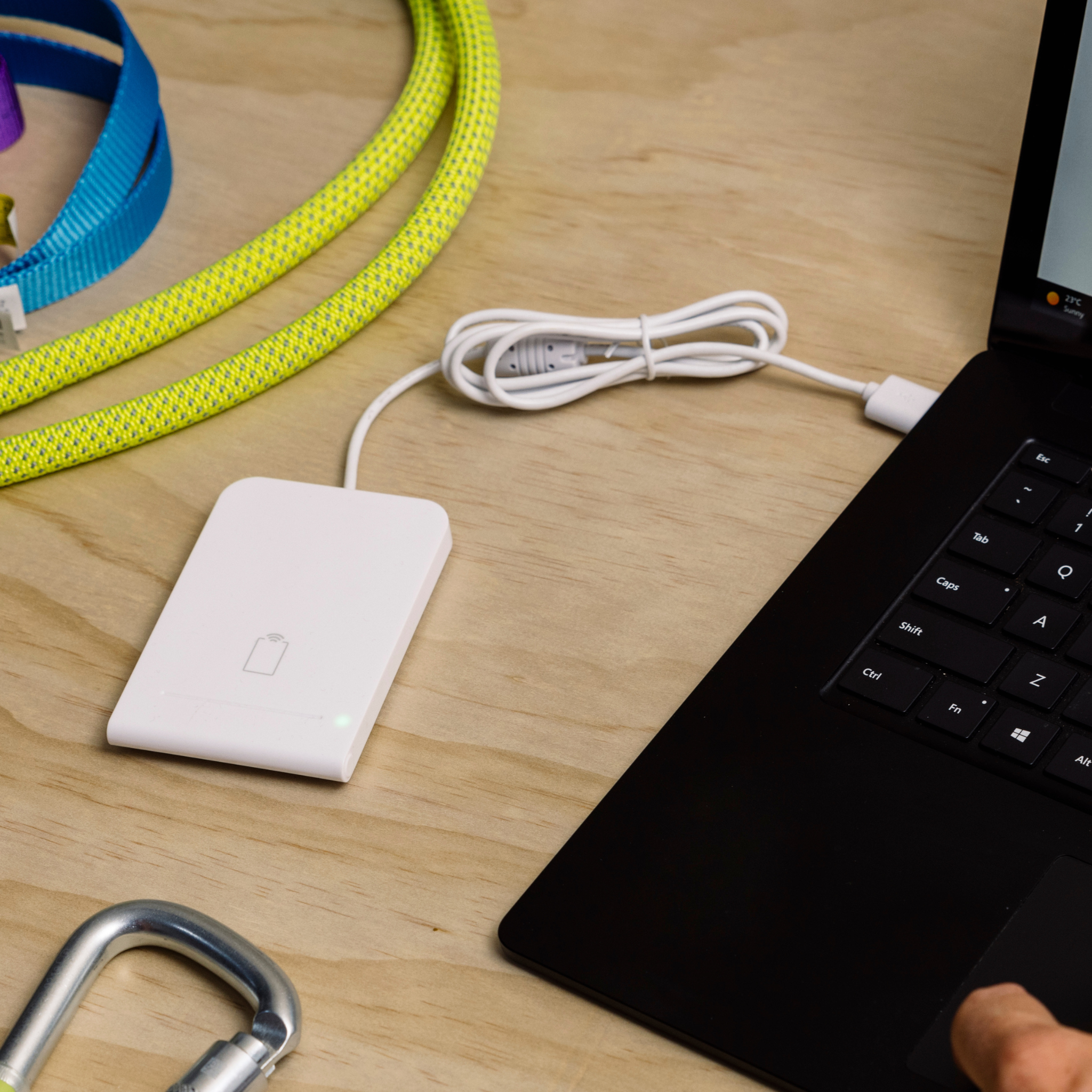
The Scannable USB NFC Reader works as a keyboard, typing the NFC identifier into any application on Mac or PC.
When reading an NFC tag with the USB-C Reader, simply hold the tag against the middle of the reader and let it do its magic.
Hardware
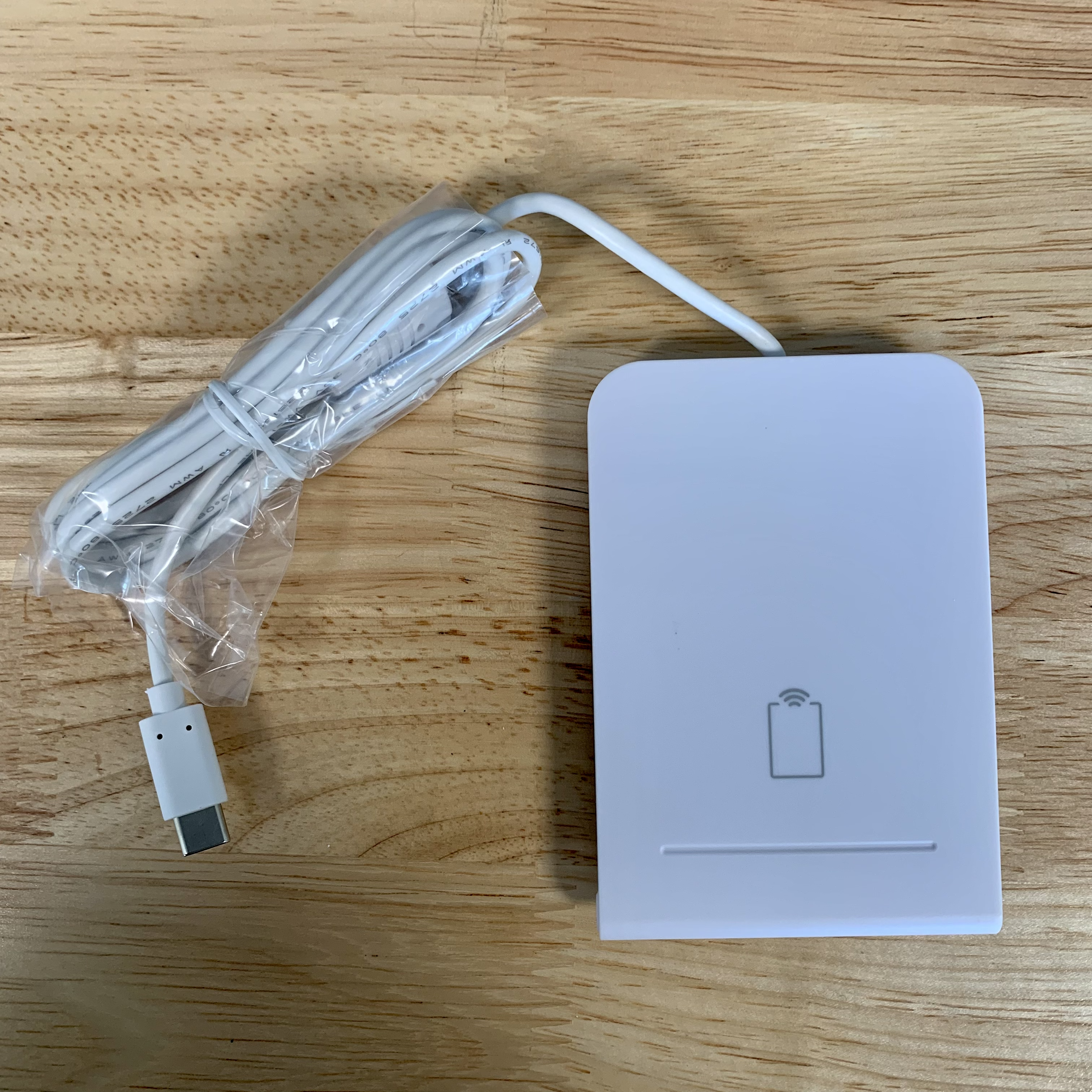
The NFC Reader comes by itself and has either a USB-C or USB-A connection.
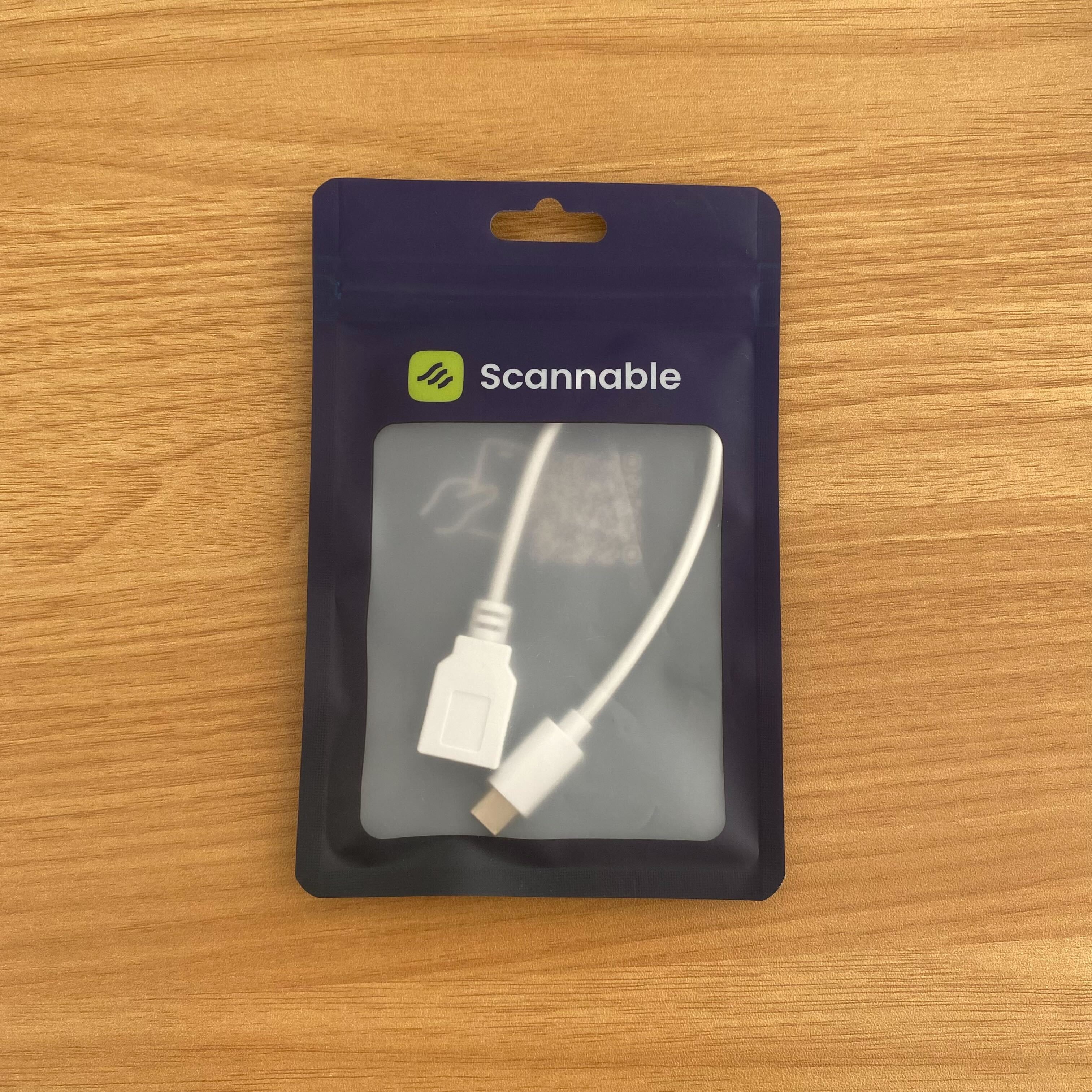
If you have a USB-A reader but need a USB-C connection, we can provide you with the required adaptor. Please note not all adaptors will work with the NFC Reader, which is why we can supply you with a verified adaptor.
Setting up and using the NFC reader
-
Plug the NFC Reader into your desktop computer, laptop, or mobile phone
-
Open the Scannable web-based app (app.scannable.io)
-
Click into a search field to search for an item, just like you would normally search for an item
-
With the cursor in the search field, hold the NFC tag against the middle of the reader (give it a few seconds), and your search results will be displayed
-
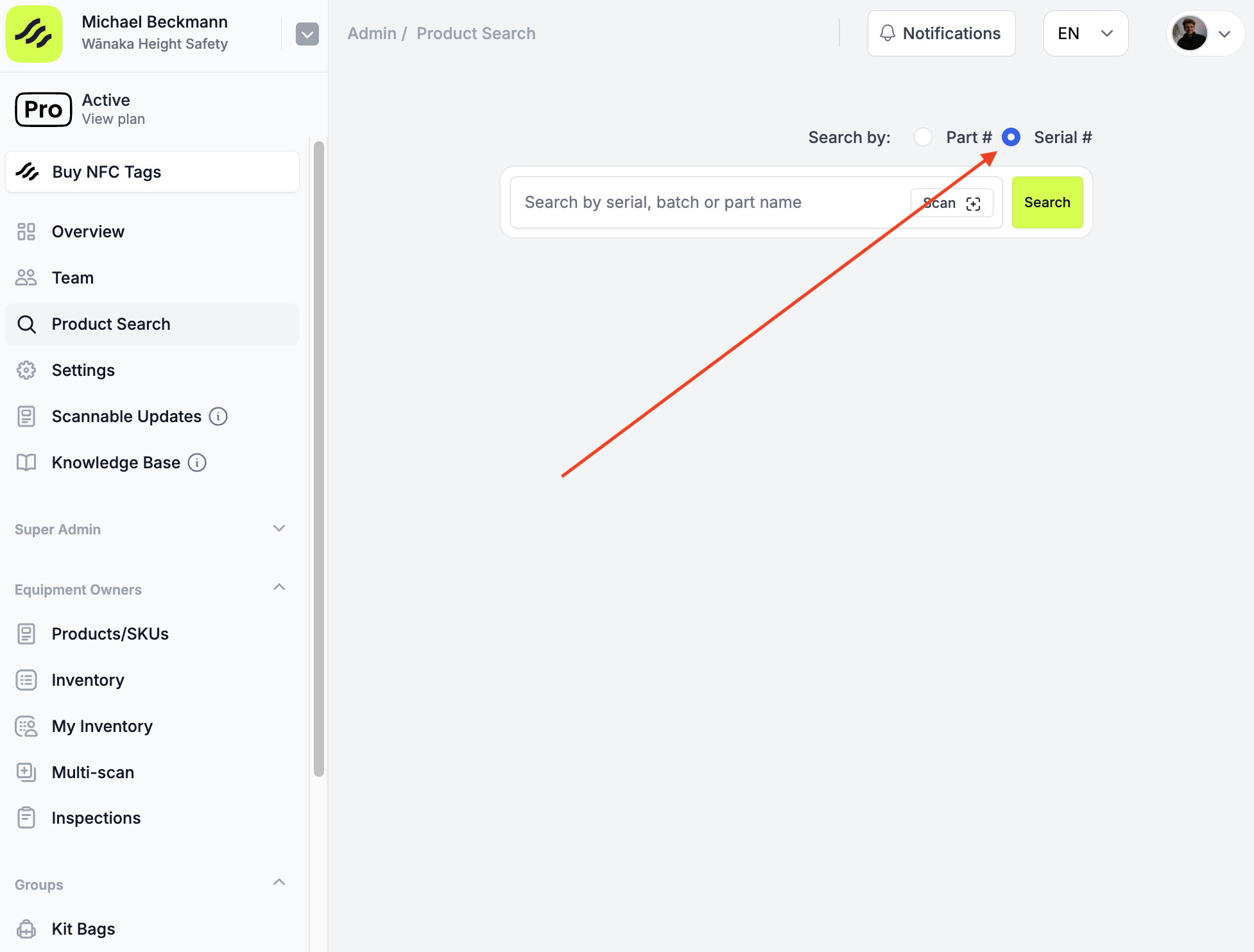
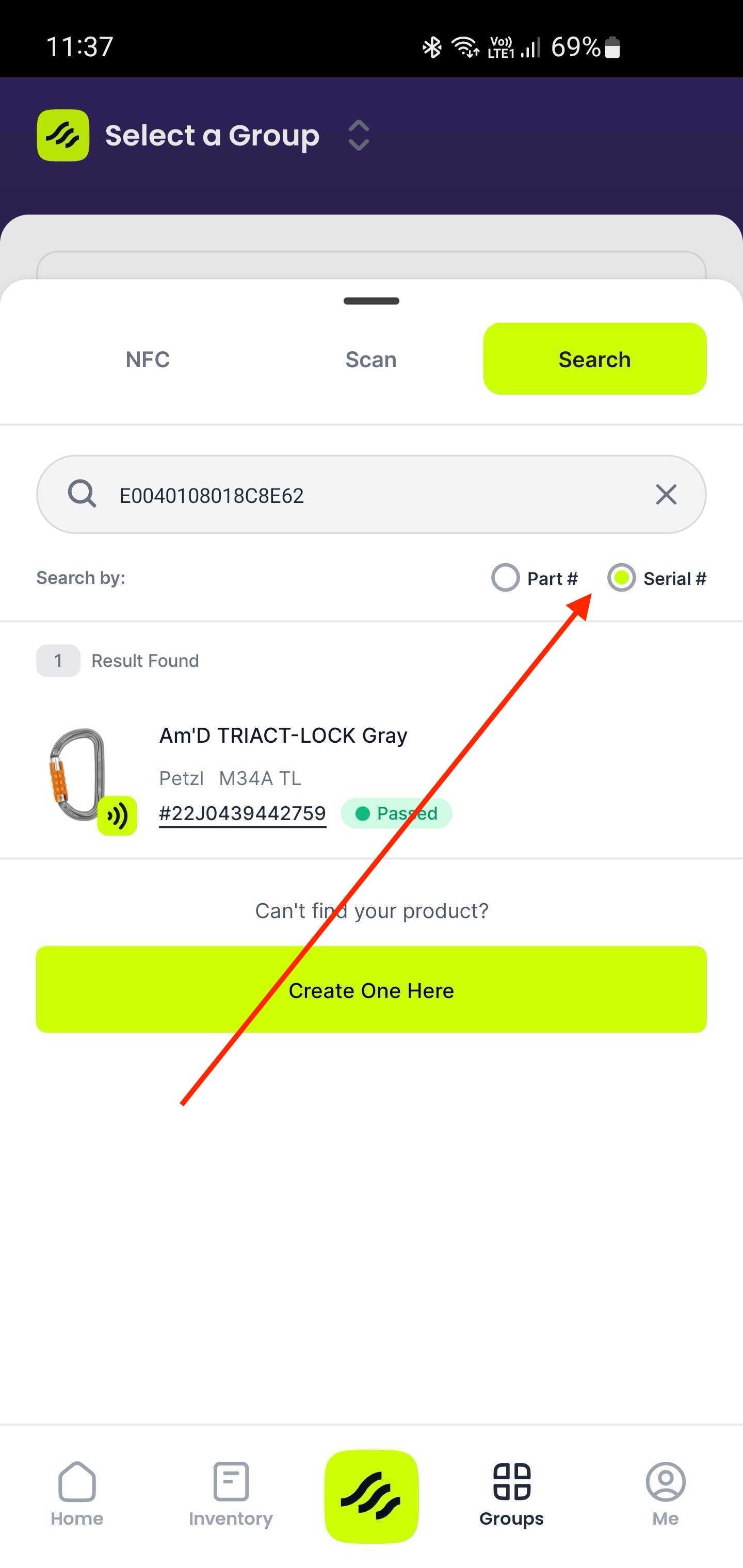
When searching for an item in Scannable's Global Equipment Database, make sure to select ‘Search by: Serial #’
-
If you’re searching from within your inventory, just click into the search field and read the tag
-
Firmware
QWERTY Keyboard Firmware for NFC Scanner.zip
AZERTY Keyboard Firmware for NFC Scanner.zip
The NFC Reader works as a keyboard emulator.
As you might know, keyboard layouts can vary around the world.
The most common keyboard layout is the QWERTY keyboard. The NFC Reader is programmed as a QWERTY keyboard straight out of the box.
If you live in a region where the AZERTY keyboard layout is default, you will need to update the Reader's firmware. Please see below the steps on how to do this.
Updating the firmware
-
On a Windows machine, please download the .zip file below:
-
Extract the .zip file by right clicking on the folder name and selecting ‘Extract All’
-
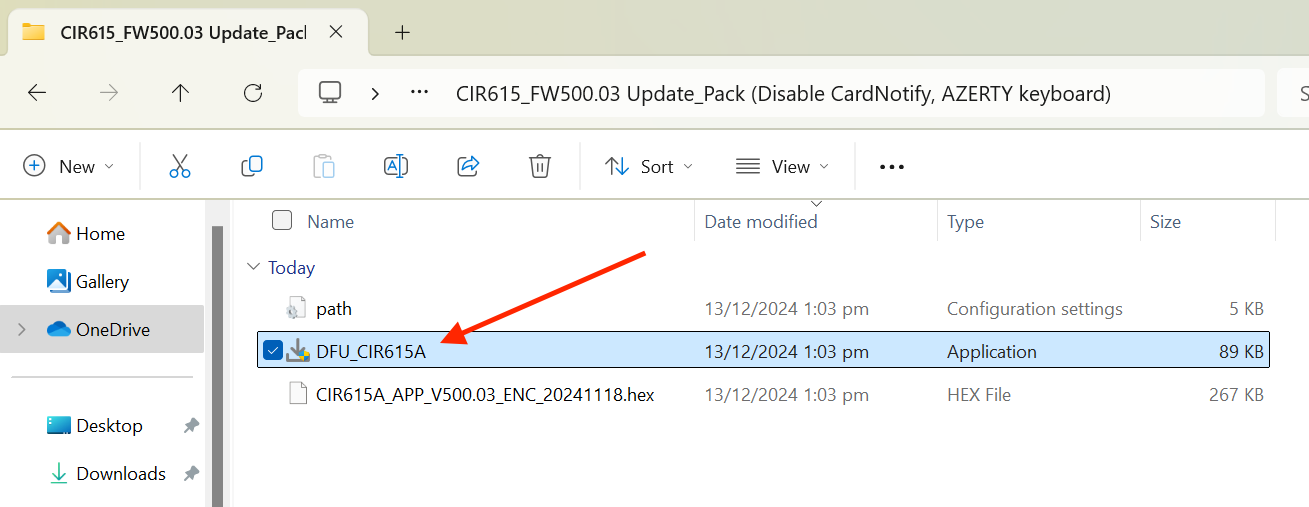
Open the folder and double click on the file 'DFU_CIR615A'
-
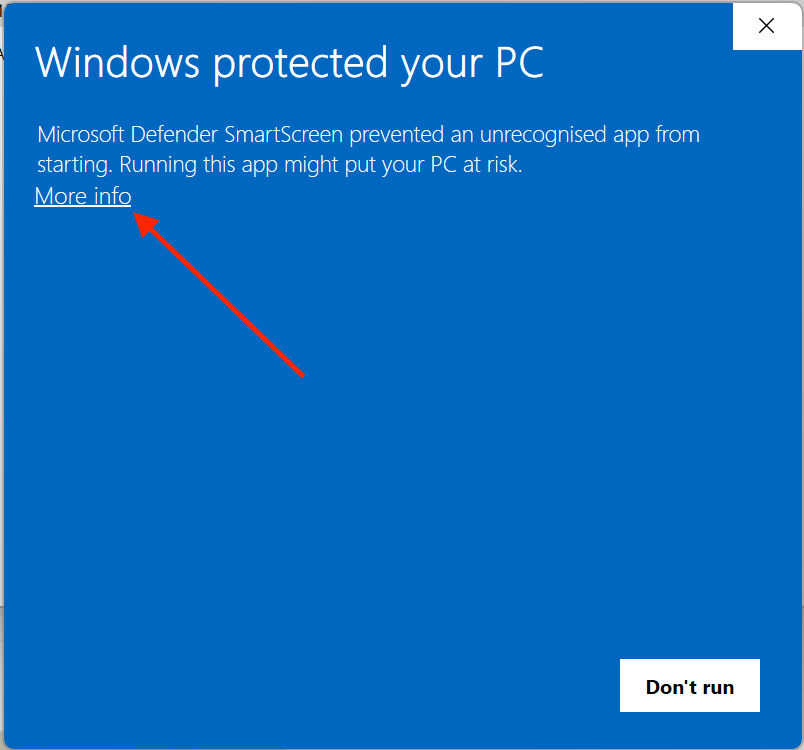
A pop-up window might appear saying 'Windows protected your PC'. If this happens, click on 'More info' and then ‘Run anyway’ to get around this.
-
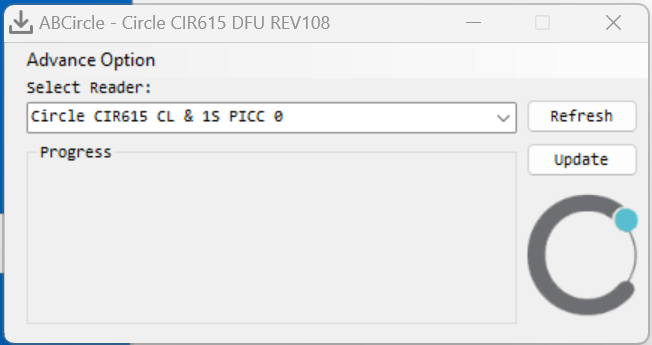
After selecting 'Run anyway', the AB Circle update interface will open. If your NFC reader is not connected to the laptop, do so now and click refresh.
-
When the reader appears, select 'Update'
-
Once the firmware update is complete, you’re ready to go!